
WinTaskIT
Sends specific app windows to the system tray instead of the taskbar when you minimize them. Always, or only while they're actually playing audio. Your choice, per app.
Windows 10/11 · no admin rights · free & open source
Why this exists
Minimizing an installed web app window, YouTube as a Chrome "app," for instance, still leaves a taskbar button sitting there. Native desktop media players solved "play quietly and stay out of my taskbar" a couple of decades ago; the installed-web-app world never did.
WinTaskIT patches that gap: send the window to the tray, keep the audio playing, control playback right from the tray icon. If you just want the full rundown of every way to keep YouTube playing in the background on Windows, see the background play guide.
Features
Always send to tray, or only while it's actually playing audio.
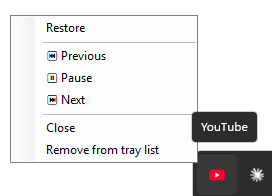
Play/Pause, Next, Previous, and Close from the tray icon's right-click menu.
Anything with an Application User Model ID: installed web apps, PWAs, most modern Windows apps.
No persistent tray icon of its own; one appears only for windows you've sent to the tray.
About 50 MB of memory and 0% CPU in Task Manager while it's running. No background services, no telemetry.
Installs per-user via a normal installer wizard, nothing system-wide.
Removes the startup entry, the Win+R shortcut, and all saved settings. No leftovers.
MIT licensed, source on GitHub.
How it works
- Runs invisibly in the background. No persistent tray icon of its own.
- Watches minimizing windows system-wide for their Application User Model ID (AUMID), the same id Windows uses to identify installed web apps/PWAs.
- If that window is on your configured list, WinTaskIT hides it and shows a tray icon instead, either always, or only while it's actually producing sound, depending on how you set that entry up.
- Click the tray icon to restore the window. Right-click for Play/Pause, Next, Previous, Close, or to stop tracking it.
Good combo: pair WinTaskIT with uBlock Origin Lite. WinTaskIT keeps the tab alive quietly in the tray; uBlock Origin Lite keeps it from burning CPU and bandwidth on ads while it's out of sight and you're not there to close the popup anyway.
Settings
Launch WinTaskIT.exe a second time (or type wintaskit
into Win+R) to open Settings. From there:
- Add windows from what's currently open.
- Enable or disable individual entries.
- Toggle "Run at Windows startup."
- Right-click any entry to switch it between "Always send to tray" and "Only while playing audio."
Screenshots

Quick Start
- Download the setup zip from the latest release.
- Unzip it and run
WinTaskIT-Setup.exe, a normal installer wizard. No admin rights needed, it installs just for your user account (to%LocalAppData%\Programs\WinTaskIT). - Launch it once (or press Win+R and type
wintaskit) to open Settings and add the windows you want tracked.
Uninstall
- The normal way: Settings → Apps → Installed apps → WinTaskIT → Uninstall.
- From the app: relaunch the exe to open Settings and click Uninstall....
Either one clears the startup registration, the wintaskit
Win+R shortcut, and all saved settings.
FAQ
- Do I need this if I just watch YouTube in a normal browser tab?
- No. A normal browser tab already keeps YouTube's audio playing when minimized in Chrome, Edge, or Firefox. WinTaskIT is for YouTube installed as an app (a Chrome or Edge "app" window), which loses that tray-like behavior when minimized. See the background play guide for other methods.
- Does it only work with YouTube?
- No. YouTube-as-an-installed-app is the motivating case, but any top-level window with an AUMID can be tracked, including other installed web apps, PWAs, and most modern Windows apps.
- Does it need admin rights?
- No. It installs per-user to
%LocalAppData%\Programs\WinTaskIT, notProgram Files, and never asks for elevation. - Will it slow down my PC or use noticeable resources?
- No. It's a small, self-contained native app that runs quietly in the background watching window events, typically around 50 MB of memory and 0% CPU in Task Manager while it's running.
- Does it collect any data or phone home?
- No. There's no telemetry, network access, or account. Settings are
stored locally in
%AppData%\WinTaskIT. - How do I fully remove it, including settings?
- Uninstall from Windows Settings, or use the in-app Uninstall... button, either one clears the startup entry, the Win+R shortcut, and all saved settings. See Uninstall.