
How to Play YouTube in the Background on Windows
The common ways people keep YouTube playing while they use other apps on Windows 10 or 11, why it sometimes seems to stop when it shouldn't, and the one gap none of those methods close.
Short answer: a normal YouTube tab already keeps playing when you minimize the browser or switch to another window in Chrome, Edge, or Firefox. No extra tool needed for that. The case where it actually breaks is when YouTube is installed as its own app window (a Chrome or Edge "app"), which behaves like any other top-level window and just sits there in your taskbar when minimized, with no tray-like option to tuck it away. The WinTaskIT section below covers that case specifically.
Does YouTube actually pause when minimized?
Usually, no. Modern browsers deliberately keep audio and video playing in background tabs, muting a tab automatically would break every music and video site on the web. If YouTube really does stop, it's almost always one of these, not the minimizing itself:
- The tab or the whole browser got closed, not just minimized.
- The PC went to sleep or hibernated (see the FAQ below).
- You left fullscreen and accidentally paused it on the way out.
- An ad blocker, extension, or a site-specific power-saving mode interfered.
So if your tab genuinely keeps playing already, you don't need any of the methods below, you're set. Keep reading if you want the window itself out of your taskbar, or you're hitting one of the edge cases above.
Existing methods people already use
These are the common approaches, no install beyond a browser extension in one case. All three keep YouTube's audio going. None of them touch the taskbar-clutter problem that shows up once YouTube is installed as its own app window, that's a separate problem the WinTaskIT section below deals with on its own.
1. Leave the browser tab open
The baseline, and it's already enough for most people. Open YouTube in a normal tab, switch to whatever else you're doing, and audio keeps playing. No setup, no install. The downsides: the browser window and that tab's taskbar entry stay there, the full browser stays in memory, and your only playback controls are the tab itself or Windows' volume flyout "now playing" widget.
2. Use a background-audio browser extension
There are browser extensions built specifically to keep YouTube audio playing in a background or muted tab, some add a mini-player too. They can work well, but you're trading it for extra browser permissions, an extension you now have to trust and keep updated, and still no answer to the taskbar-clutter problem.
3. Download it and play it in a media player like VLC
The old-school option: download the audio or video (where that's permitted by YouTube's terms and the content's license) and play it locally in VLC or any media player. This gets you real, dedicated media controls and zero browser overhead, but it's manual per video, doesn't work for livestreams, and isn't practical if you're jumping between videos all day.
WinTaskIT: a different kind of fix
WinTaskIT isn't another item on the list above, it doesn't compete with those methods, because it solves a different problem. Leaving a tab open, using an extension, or downloading with VLC are all about keeping audio going. WinTaskIT is about what happens once YouTube is already installed as its own app window: nothing above stops that window from sitting in your taskbar when you minimize it. WinTaskIT is the only entry here that fixes that specifically.
Chrome and Edge both let you "install" YouTube as a desktop app from the browser menu. That gives it its own window, its own taskbar icon, and no address bar, closer to a native app. What it doesn't give you is a native app's tray-minimize behavior: minimize that window and it just sits in your taskbar like any other window, still using screen real estate in Alt+Tab, with no built-in way to tuck it away.
WinTaskIT is a free, open-source Windows utility built for exactly that gap. Add the installed YouTube window to WinTaskIT once, and from then on minimizing it sends it to the system tray instead of the taskbar, either always or only while it's actually playing audio, your choice. The tray icon gives you Play/Pause, Next, Previous, and Close from a right-click, without you ever needing to bring the window back.
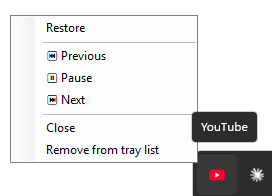
It installs per-user with no admin rights, runs at roughly 50 MB of memory and 0% CPU, and has no telemetry or network access. Same behavior applies to other installed web apps and PWAs too, not just YouTube.
Which method should you use?
If a plain browser tab already does what you need, use that, it's the simplest option and needs nothing extra. The first three rows below are the existing methods; WinTaskIT is set apart at the bottom because it's the only one that clears the taskbar for an installed app window.
| Method | Keeps audio playing | Off the taskbar | Dedicated media controls | Setup effort |
|---|---|---|---|---|
| Leave the tab open | Yes | No | Volume flyout only | None |
| Browser extension | Yes | No | Varies | Low |
| Download + VLC | Yes, offline | Yes | Yes, VLC's own | Medium, per video |
| Installed app + WinTaskIT | Yes | Yes | Yes, from the tray | Low, one-time |
FAQ
- Does YouTube Premium's background play work on Windows?
- No. Background play, audio continuing when you switch apps or lock your phone, is a YouTube mobile app feature on Android and iOS. It isn't related to how YouTube behaves in a desktop browser, where a minimized tab already keeps playing by default.
- Is there a built-in Windows way to send a browser tab or web app to the tray?
- No. Windows has no native setting to minimize a browser window or an installed web app to the system tray the way classic desktop media players do. That's the specific gap WinTaskIT fills.
- What's the difference between Picture-in-Picture and sending a window to the tray?
- Picture-in-Picture keeps a small floating video window on top of everything else, it still takes up screen space and still shows up in Alt+Tab. Sending a window to the tray removes it from the screen and the taskbar entirely, leaving only a tray icon.
- Does closing my laptop lid or letting Windows sleep stop YouTube?
- Yes. Sleep and hibernation suspend the whole PC, including audio playback, no matter which method above you use. If you need audio to keep going with the lid closed, check Windows' Power & battery settings, that's separate from anything covered here.